How I use social media is something that I often get asked. I use social media rather a lot – for blogging, to connect with family and friends, to speak to other disabled/blind and visually impaired people and to keep up-to-date with what’s happening in the world. But how accessible is it if you have a visual impairment?
Technology is a topic that I often discuss on my blog, working as an Assistive Technology Advisor means that I use a wide range of software and equipment on a daily basis either for myself or when training others. It also means that I come across many accessibility issues, some that can be resolved and others that cannot.
The RNIB’s #BlindPeopleUsePhones campaign is still a hot topic on social media and with this in mind, I thought I’d write a post on the accessibility of social media if you have a visual impairment in the hope that it might answer some of the frequently asked questions on this topic.
There are many things that can be done in order to make social media more accessible for people with a visual impairment, including adding image descriptions, capitalising each letter in a new word within a hashtag and describing memes/gifs, all of these make using social media that bit more accessible and easier to use.
RELATED POST: 6 ways to make your social media posts accessible for people with a visual impairment
Before we get into the post, I’d like to give a gentle reminder that every blind and visually impaired person’s vision is different, some people have some useful vision, others do not. Although I’m discussing my own experiences, this does not reflect every blind and visually impaired person.
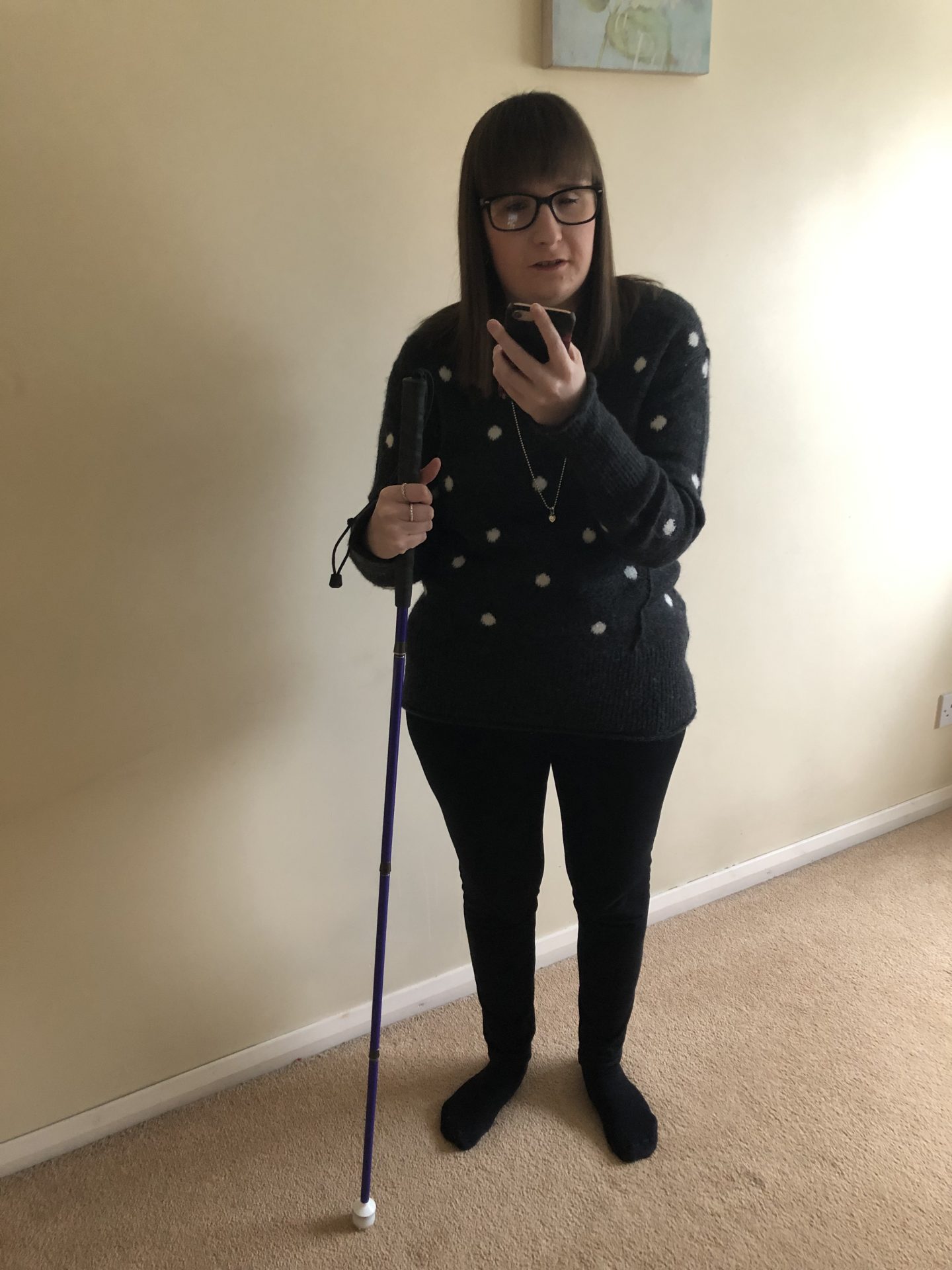
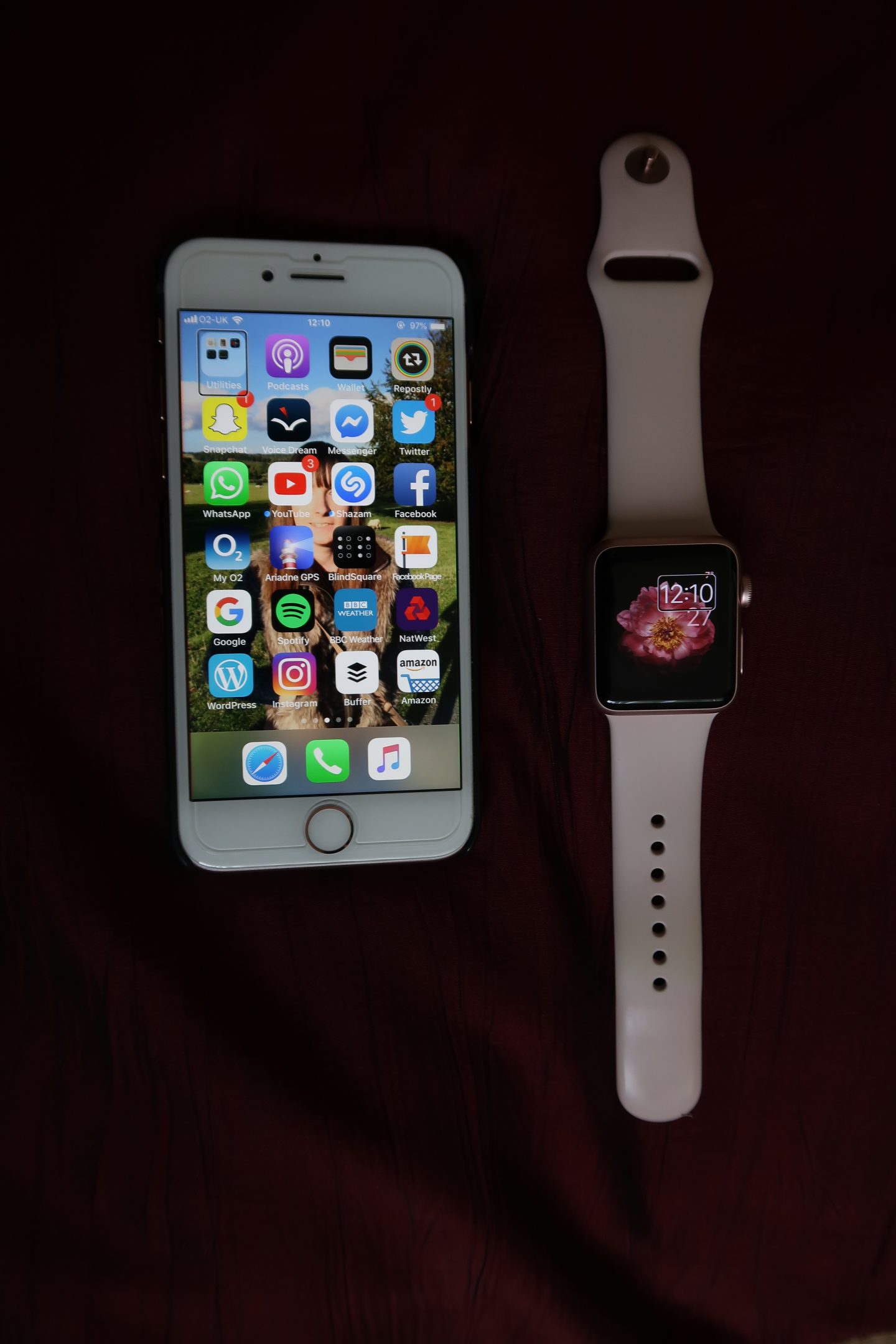
To give you a bit of an insight,, I use VoiceOver on my iPhone, iPad and Mac, this is a built-in screen-reader in all Apple products. There are other accessibility features such as zoom, larger text, invert colours, and other accessibility features for people with hearing loss or physical disabilities.
RELATED POST: how do blind and visually impaired people use a mobile phone?
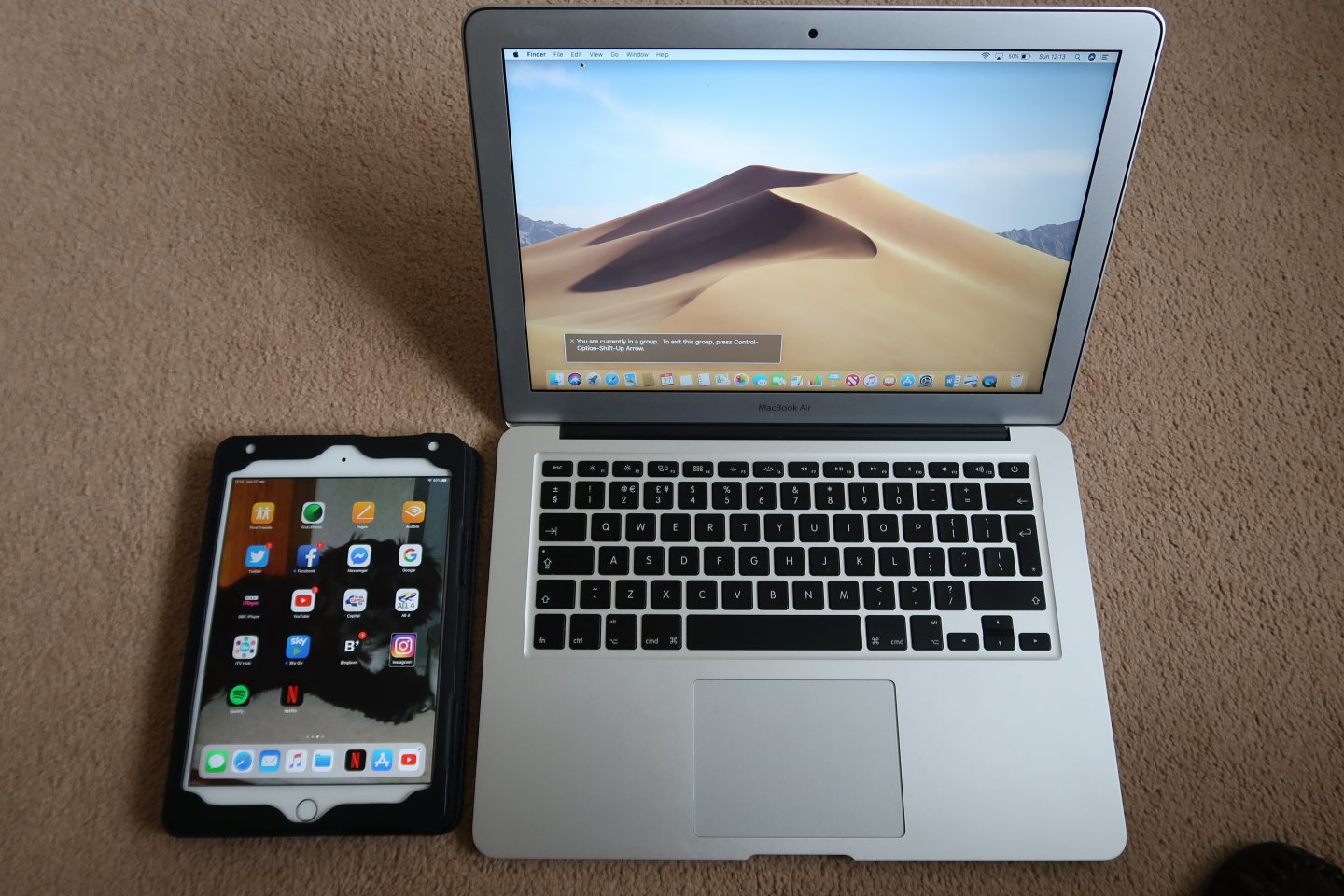
On a Windows laptop I use Jaws screen-reader. I am also able to use other screen-readers such as SuperNova and NVDA.
It’s important to note that not every blind person uses a screen-reader, some use zoom, large text, colour inversion, magnification, or a mixture of features.
With that said, I want to tell you how accessible I find social media as a blind person with no useful vision.
Facebook says that it is committed to making its site accessible to blind and visually impaired people. For screen-reader users, it has shortcut keys that enable you to carry out specific actions quickly and easy when on certain devices.
Blind and visually impaired people are able to like, comment and share content just like sighted people can. However, for many blind people like myself that use screen-readers, we are unable to interact with gifs and memes which seem to be very popular at the minute. Facebook doesn’t have the ability to describe these, so it puts us at a bit of a disadvantage.
Facebook has a brilliant feature where screen-readers describe images, in 2017 Facebook introduced automatic alternative text. Automatic alternative text (alt text) generates a description of a photo using artificial intelligence (AI) which is then read out loud by screen-readers. People using screen-readers will hear a list of items a photo may contain as they swipe past photos on Facebook, for example, a screen-reader might say, “Image may contain: three people, people smiling, table, indoors” or “image may contain: one person, outdoors, grass, plants and nature”.
Recent advancements in this feature now mean that a screen-reader will read who is in a photo if you are friends with them on Facebook, this can be a great way of finding out who is in the photo before you like or comment on it.. It will also read some text that is within images.
For people that use zoom, large text and other accessibility features, Facebook uses the built-in accessibility features on devices to make it accessible.

I use Facebook on my iPhone, iPad and also on the computer. On the iPhone and iPad, I use the Facebook app. I find it really easy to navigate and also find it very accessible (most of the time). I especially like the image description feature, and find this especially useful.
Like Facebook, Twitter is fully accessible for blind and visually impaired people whether they are using a screen-reader or other accessibility features.
Twitter is fully accessible, blind and visually impaired people are able to use it in the same way as sighted people.
In 2017, Twitter announced that users would now be able to add descriptions to any photo posted to the service. If you enable this setting, every time you add an image to a tweet, you’ll have the option to add a description which can be up to 420 characters. This is a great step forward to making Twitter even more accessible, but unlike the Facebook version it is not automated and therefore relies on the person posting the image to turn on the setting and write the description. In addition, users have to go in to their accessibility settings and turn the feature on, which inevitably many people won’t take the time to do or they may not know about the feature. Twitter have provided instructions on how to turn this setting on so I would suggest doing so.
Personally, I’m more likely to interact with a tweet that has an image description than one that does not.
However, like Facebook, memes and gifs aren’t accessible to screen-reader users, putting us at a bit of a disadvantage. There is also no option for users to describe memes and gifs, descriptions would have to be in the main tweet but I know very few people that actually do that.
Twitter has it’s own accessibility features including increase colour contrast, the option to increase/decrease the text size, and enable night mode. All of these features can easily be enabled in Twitter settings, making it even more accessible.
However, Twitter doesn’t currently have great support for dynamic text size, meaning that people who use larger text often struggle to use the social media site.
Like facebook, it also has a range of shortcut keys that people can use to quickly complete actions whilst using Twitter on the computer.
It is also worth noting that there are some alternative Twitter applications that are fully accessible. Apps such as Twitterrific are popular, some blind and visually impaired people find such apps easier to use for certain aspects of using Twitter such as watching videos and viewing a person’s profile. This is very much down to personal preference, it’s about finding out which you prefer. It’s great that we have a choice in regards to which Twitter clients we can use.

For me, Twitter is by far my favourite social media platform. I use it for blogging, to talk to fellow disabled people, keep up-to-date with the news and my favourite celebrities.
I mainly use it on my iPhone and iPad as I prefer tweeting from the app but do also sometimes use it on the computer as well. Personally, I think it’s by far the most accessible social media network out there, don’t get me wrong, there are improvements that need to be made in order for it to be fully accessible, but I think it’s up at the top, that’s my personal opinion anyway.
Photo and video sharing
Whilst Facebook and Twitter offer photo and video sharing features, apps such as Instagram and Snapchat are becoming ever so popular to share photo and video content, but how accessible are they if you have a visual impairment?
Before signing up to these services, I was sceptical about the accessibility of them, they are very popular and are widely used by my age group so I wanted to see for myself how accessible they actually were and what I could get out of them as a blind person who can’t see photos or videos.
Instagram is only partly accessible for people with a visual impairment. The interface of the app and website is accessible for blind and visually impaired people and both work well with screen-readers.
With the app, it is possible to search for and follow users, browse users’ profiles, brows the main feed, read comments and upload content. Screen-readers now read captions on images and videos. These can be accessed when viewing the main feed; captions can be accessed once the user has scrolled past the ‘like’, ‘comment’, ‘send’ and ‘save’ buttons for a particular post. When viewing an individual’s profile, screen-readers read captions if you double tap on a photo to open it and, like on the news feed, scroll past the ‘like’, ‘comment’, ‘send’ and ‘save’ buttons.
On the iPhone, VoiceOver does not read captions when initially scrolling through posts on a profile when in ‘grid view’. However, this problem can be rectified by switching to ‘list view’, VoiceOver will read all the captions and like, comment and save buttons, just like it does when scrolling through the main feed. Switching to this view means that you don’t have to double tap on a post to view the caption, it is much easier and more accessible, but it can be a bit time consuming.
Being able to read captions, hashtags and comments means that I can gauge what the photos are of, even if I cannot see them. However, captions can sometimes be unclear and do not give an indication as to what the photo shows.
Instagram’s accessibility has certainly improved over the years, it now uses the same artificial intelligence (AI) feature as Facebook which enables screen-readers to give a brief description of images.
There is also the option to add alt text to images you upload on Instagram, this makes them fully accessible to blind and visually impaired users.
When uploading a photo to Instagram, press the advanced settings button, it then gives you the option to add alt text to the image. There is more information on the feature in this article.
However, like Twitter, this feature is hidden so people may not even know about it which puts blind and visually impaired people at a disadvantage.
Uploading photos and videos to an Instagram story is something that people do on a regular basis, however this can be extremely difficult for blind and visually impaired people. As a screen-reader user, I have not yet found a way of doing this using VoiceOver on the iPhone.
In terms of viewing Instagram stories, it is easy enough to scroll to the story you want to view, but if you have limited or no useful vision like myself then you are unable to view the photos so only get benefit from videos.
When uploading photos and videos to Instagram, there is no clear descriptions of filters so blind and visually impaired people often struggle to know which filters to use, this is only accessible if you have some useful vision or can ask a sighted person for a bit of help.
As a blind person with no useful vision, I am able to get what I want out of the app, it may not be the most accessible but it is definitely improving.
Snapchat
There’s no doubt about it, Snapchat is the least accessible social media platform for blind and visually impaired users.
Some parts of the Snapchat app are accessible, and others are completely inaccessible.
As a VoiceOver user, I am able to search for and add users, view Snapchat stories and send and receive messages. Although I am able to view Snapchat stories, I am only able to access those with audio. The ones which contain speech are the ones I can get the most useful information out of, as I can listen to videos from friends and celebrities I enjoy.
It is also very difficult to upload to Snapchat when using VoiceOver on the iPhone.
Due to its inaccessibility, I personally do not use Snapchat and think it has a long way to go to be fully accessible for people with a visual impairment.
So, there you have it, a bit of an insight into the accessibility of social media for blind and visually impaired people.
Do you have any tips on using social media when you have a visual impairment? What’s your favourite social media platform? Let me know in the comments, I’d love to hear from you.
Holly x

![There’s a phrase we hear far too often: “fully accessible”.
Hotels use it. Venues use it. Website developers use it. Event organisers use it.
On the surface, it sounds brilliant. But there’s no one size fits all approach to accessibility.
Because accessibility isn’t a box you can tick once and forget about. There isn’t a magic point where something becomes accessible to every single disabled person.
Our access needs are different. What works for one person might not work for another.
Rather than asking, “is it accessible?”
Ask: “Accessible for who?”
In my latest blog post, I’m exploring why “fully accessible” is a myth. Head to the link in my bio if you’d like to give it a read.
[Image descriptions:
Image one: Holly stood on a pier, leaning against a railing by a sandy beach with the sea in the background. She wears a black T-shirt, a skirt with a colourful floral pattern, a silver necklace and glasses.
Image two: Holly sat on a low stone wall beside a shallow stream with a path running alongside it. Dense green bushes and trees line the far bank, forming a thick hedge along the water. There is a small bridge and a building in the background. She wears a black T-shirt, a long, multicoloured patterned floral skirt and a silver necklace.]](https://lifeofablindgirl.com/wp-content/plugins/instagram-feed/img/placeholder.png)
I recently wrote a blog using the WordPress app on my iPad for the first time. Though I carefully inserted alternate text, it did not work when the blog was published. I discovered it when doing some editing on the computer. Writers need to verify what we post and be sure it is accessible.
Thanks for the great tutorial!
How frustrating, it’s good that you checked, thank you for doing so, they really do! Thank you, glad you liked it 🙂
Nice piece Holly. I noticed that you are using Pinterest on your site. Would you mind sharing which plugin you are using? I couldn’t find an accessible plugin for my blog.
Thank you! I’m not actually using a plugin, there is a social links menu on my main dashboard and the option is in there, this might depend on which theme you are using though
A really insightful post as always. I completely agree that apps such as snapchat have a long way to go in terms of accessibility, lets hope that raising awareness in posts like this one help to make people realise what needs to be improved!xxx
Thank you so much lovely xxx
Great post. I have been debating as to whether I should try using
Instagram. Do you think it is a good platform for boosting blog traffic?
As a JAWS user i found Twidder to be near impossible to use, and am currently battling with the comment element of FB. I’m still searching for ways around this, and your post at least gave me hope that it can be done.
It definitely can be done, it can just take a while to get your head around. Maybe start off by using the mobile platforms of each so m.twitter.com and m.facebook.com as they are a bit simpler
Hi, thanks for sharing this! Alt text can work for images, transcriptions of videos too. What about videos on social media? Those that are without narration, just music and words flying around? What would be your advice to the producers of such videos? Thank you!
No problem, hope it was helpful. For videos on social media I would suggest writing a description of the video in the post, in the comments section or another tweet in the thread. Ideally it would be great if they were audio described but I know that’s not always possible so a description works well
I’m curious about how people can write links and profile names.
I’m told with hashtags, Camel Case, where the first letter of each word is capitalised #LikeThisHashtag helps the screen reader pronounce it as words rather than letters, even though there are no spaces.
I would have thought, then, that Instagram names that use underscores to separate words would be preferable, but I notice that your Instagram name doesn’t do that so I’m curious to know if it’s preferable to do so or it’s contextually not an issue.
That’s correct. In regards to social media usernames, screen readers will read out the _ so there isn’t a preferable way of doing that, as long as you can get an idea of the username/name of the account
Really useful post. I am sighted and my work often involves creating social media content, so it’s really helpful for me to hear what it is like to engage with socials as a visually impaired person. Thank you for taking the time to explain!
Thank you, really pleased you found it helpful!